

Overview
MDaemon supports meeting room configuration using a dedicated email account or calendar resource. While MDaemon does not use traditional "room objects" like some enterprise mail systems, its built-in calendar and scheduling features allow a meeting room to automatically accept or decline meeting requests based on availability.
This article explains how to configure a meeting room in MDaemon with auto accept/reject functionality and how users can book the room from Outlook or MDaemon Webmail.
Prerequisites
-
Administrative access to the MDaemon server
-
MDaemon Webmail or MDaemon Connector for Outlook in use
Step 1: Create a Dedicated Meeting Room Account
-
Log in to MDaemon as an administrator.
-
Navigate to Accounts → Account Editor.
-
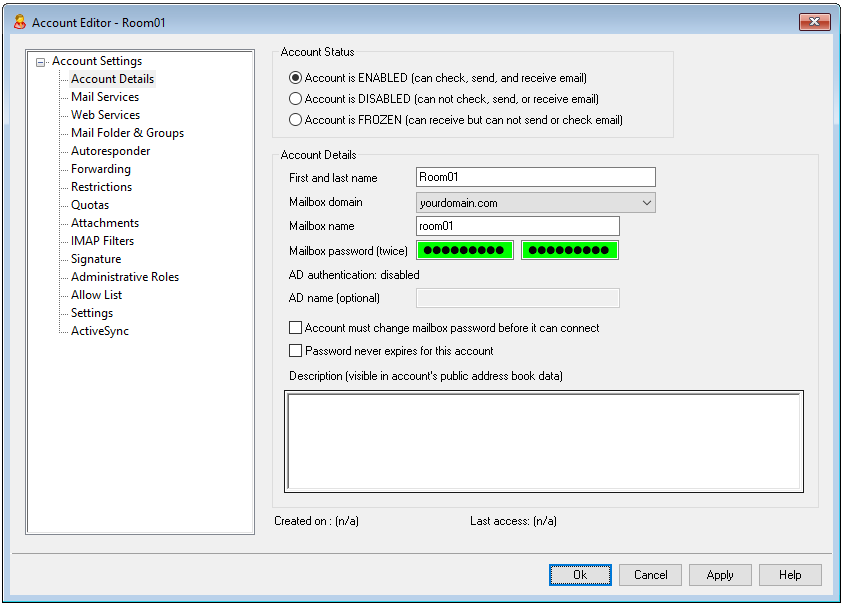
Create a new standard email account to represent the meeting room.
Example:
-
Room01@yourdomain.com -
MeetingRoom@yourdomain.com
This account represents the meeting room itself and will be used for scheduling.
Step 2: Enable Automatic Meeting Processing
-
In MDaemon, go to Accounts → Account Editor.
-
Select the newly created meeting room account.
-
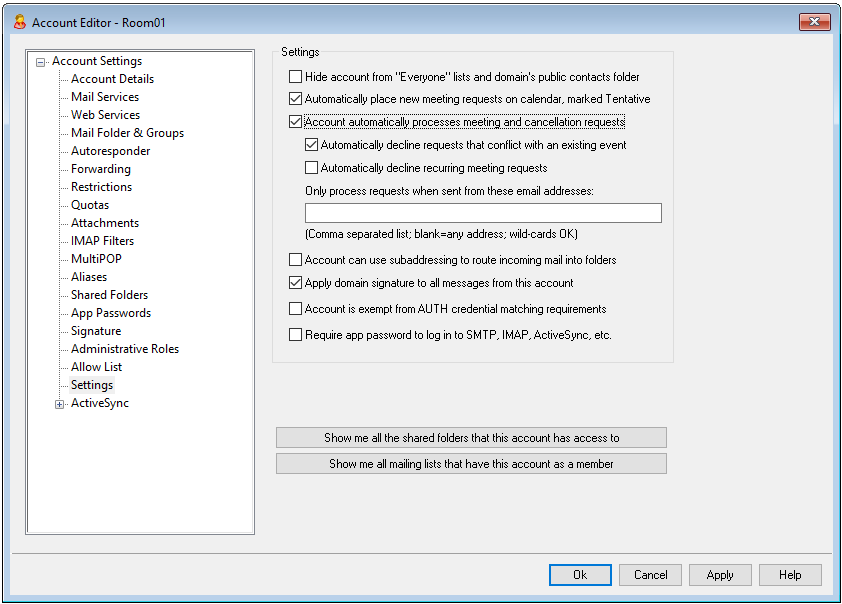
Open the Settings tab.
-
Enable the following options:
-
Account automatically processes meeting and cancellation requests
-
Automatically decline requests that conflict with an existing event (recommended)
These settings allow the meeting room to automatically:
-
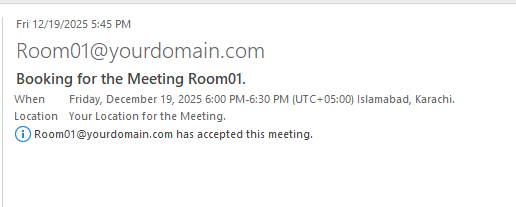
Accept meeting requests if the room is available
-
Decline requests if there is a scheduling conflict
Step 3: Scheduling and Booking the Meeting Room
Users can book the meeting room by inviting the room’s email address to a meeting request using:
-
MDaemon Webmail, or
-
Microsoft Outlook with MDaemon Connector
How It Works
-
The room account maintains its own calendar.
-
The Scheduling Assistant displays the room’s Free/Busy status.
-
Availability is shown in a color‑coded grid (Free, Busy, Tentative, Out of Office).
Users can easily select a time when both attendees and the meeting room are available.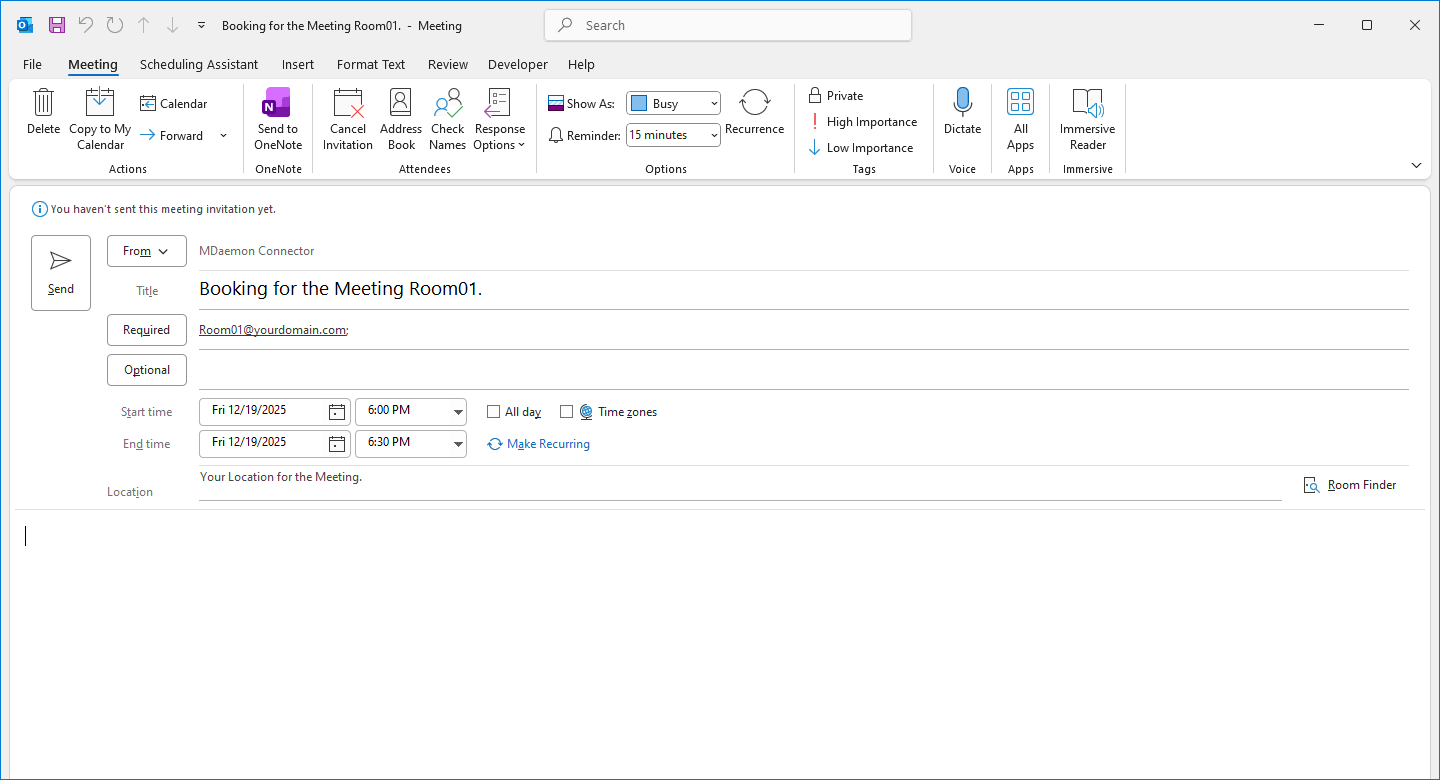
Result
Once configured:
-
Meeting requests sent to the room are processed automatically
-
Conflicting meetings are declined
-
No manual approval is required
-
The meeting room behaves like a shared calendar resource
Notes
-
This configuration works with all recent MDaemon versions that support calendar and meeting request processing.
-
For best results with Outlook, ensure MDaemon Connector is properly installed and configured.
Need Help?
If you require assistance with configuration, testing, or Outlook integration, please contact our support team.