

| **NOTE - MDaemon administrators storing accounts in an Open Database (ODBC) - Please change the account database type back to the USERLIST.DAT file before following these steps. The ODBC data source can be reconfigured once MDaemon is running on the new server/OS. |
- The existing MDaemon service must be removed to move MDaemon to a new directory path or a new machine.
To remove the MDaemon service:
- Select Setup
- Select Preferences
- Select Windows Service
- Select Remove Service
- Click OK in the Service was successfully removed pop-up.
- Click OK in the Preferences window.
- Select Yes when MDaemon asks to restart.
- MDaemon will now restart running as an Application.
- If you are moving MDaemon to a new directory path on the same server, the Ikarus scanserver service must be removed. If you are moving MDaemon to a new machine and will be uninstalling the original MDaemon installation at a later time, this step can be skipped.
To uninstall the Ikarus scanserver service:
1. Open a command prompt as administrator.
2. Change directories to the \MDaemon\SecurityPlus\Ikarus\scan.server\bin directory.
3. Enter scanserver_w64.exe -remove to remove the service. - Follow the next steps to deactivate MDaemon and any other MDaemon plug-ins.
**NOTE - Deactivation is necessary to avoid any potential activation issues.
To deactivate your Alt-N Software
- Select Help
- Select Activate Your MDaemon Software
- Select Deactivate MDaemon...
- The SMTP, POP3, IMAP, and Webmail servers in the Servers section of MDaemon will turn red (inactive).
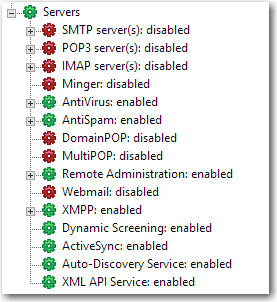
- Proceed to deactivate any additional MDaemon plug-ins that are activated on the server using the same menu above.
- Open Windows Explorer and copy the entire MDaemon directory to the new directory on the new server.
- Use a text editor to edit the following files and point the old directory paths to the new directory paths.
- \MDaemon\App\*.grp (if path references have been made in mailing lists)
- \MDaemon\App\AccountTemplates.dat
- \MDaemon\App\AutoResp.dat
- \MDaemon\App\CFilter.ini
- \MDaemon\App\cfrules.dat (if any content filter rules pointed to a directory)
- \MDaemon\App\Gateways.dat
- \MDaemon\App\MDaemon.ini
- \MDaemon\App\MDSTATS.INI
- \MDaemon\App\Plugins.dat
- \MDaemon\App\Reminders.dat
- \MDaemon\App\Schedule.dat
- \MDaemon\Data\AirSync.ini
- \MDaemon\Data\AutoDiscover.ini
or
\MDaemon\WorldClient\AutoDiscover.ini
- \MDaemon\Data\Dynamicscreen.ini
- \MDaemon\SecurityPlus\ClamAVPlugin\conf\clamd.conf
- \MDaemon\SecurityPlus\ClamAVPlugin\conf\freshclam.conf
- \MDaemon\SpamAssassin\rules\local.cf
- \MDaemon\WebAdmin\webadmin.ini
- \MDaemon\WorldClient\worldclient.ini
- Install the same version of MDaemon that was installed on the previous server.
**NOTE - The server configuration, user directories, and other modifications are NOT changed when running the installer. Click here for prior versions of MDaemon.
**NOTE - Please be sure the MDaemon service/application is not running on the new server. - Next MDaemon's dirreorg tool must be ran to compile the changes made to the dat/ini files
- Open a command prompt
- Navigate to the \MDaemon\App directory using the cd command
- Enter dirreorg /f
- Start MDaemon
|
Additional Comments If you are changing your IP address(es) in addition to moving, the MDaemon.ini, Domains.dat, and/or Gateways.dat will need to be updated with the new IP address(es). |
Courtesy / Reference: The above article is the copyright of the respective authors and content writers from the following reference URL:
https://knowledge.mdaemon.com/move-mdaemon-using-different-directory-path