

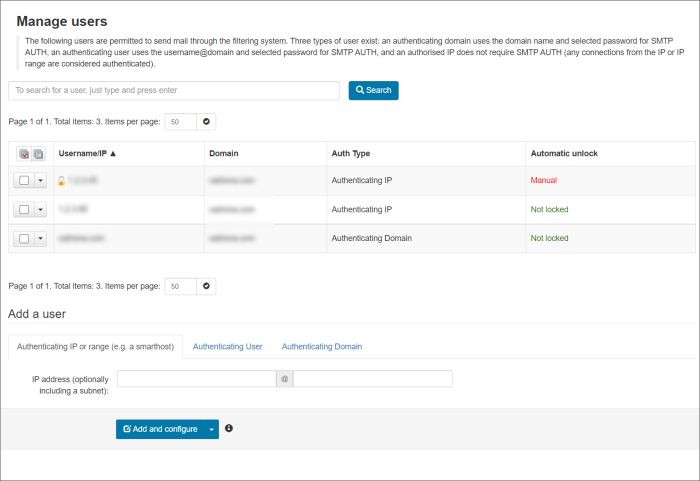
- When logged in to the Super-Admin, Admin and Domain Level Control Panel, navigate to Outgoing > Manage Users page
- In the Add a user section, choose the type of user you want to add by selecting the relevant tab:
- Authenticating IP or Range
- Authenticating User
- Authenticating Domain
- Enter the details and click Add & Configure or Add by selecting the arrow beside Add & configure and clicking Add from the menu. If using the Add function, the user/authentication method will be added using the default settings.
At the Admin Level you will be required to enter the domain the user/authentication method is for.
- If using the Add & Configure function, set the following user settings as required:

- Click Save to ensure you don't lose any changes.